Knowledge Base
HOW TO SET UP VACATION MESSAGE
Are you out of the office for vacation and don’t want to keep the email senders waiting? Especially for you, DirectAdmin came up with the feature called Vacation Messages. Through the Vacation Messages option, you can set up the automated somewhat Autoresponder Mail configured explicitly for the set of periods. Want to know how? Learn, How to set up Vacation Messages in DirectAdmin
1. First, login into DirectAdmin control panel
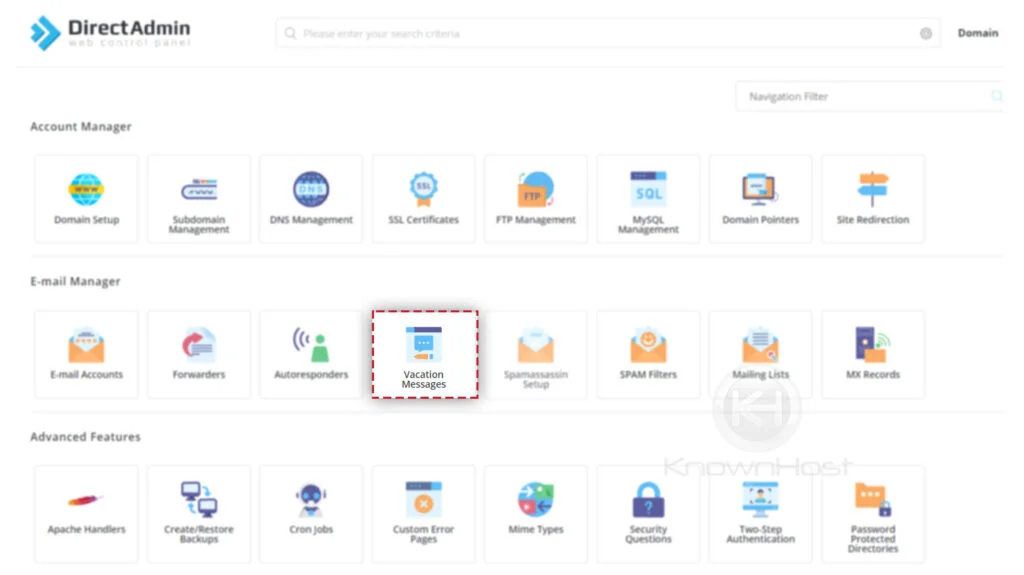
2. Navigate to Email Manager → Vacation Messages.
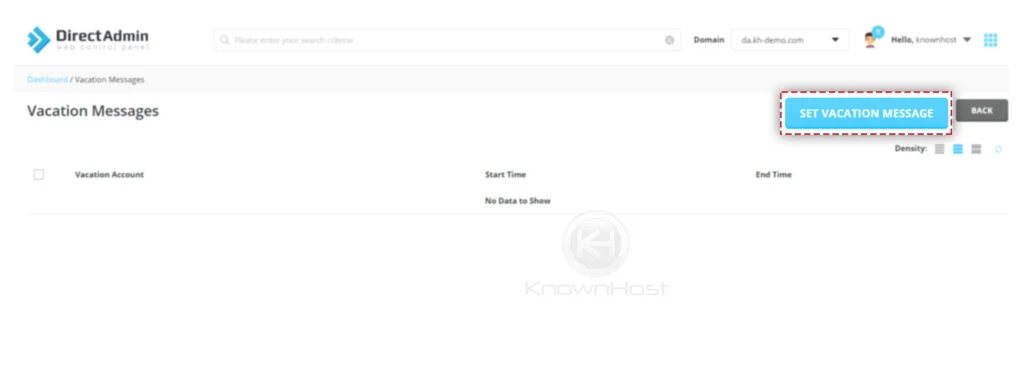
3. Click on “SET VACATION MESSAGE“.
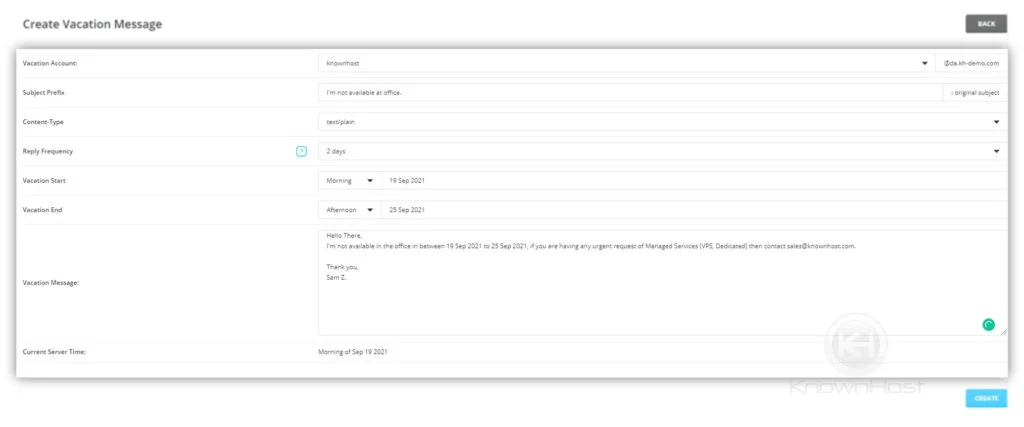
4. Enter the required information,
Vacation Account: Specify the username of your email address (Example: cory@, shwet@).
Subject Prefix: Specify the subject for vacation email.
Content-Type: Select whether you would like to set up Text-based Message body HTML.
Reply Frequency: This is the configured time in hours you can wait for autoresponder before sending an auto-reply to the recipient (1 Minute, 10 Minutes, 30 Minutes, 1 Hour, etc.).
Vacation Start: Select the starting date of the vacation.
Vacation End: Select the ending date of the vacation.
Vacation Message: Enter your message body of the vacation email.
Current Server Time: Here, you can see the server present date as per configured timezone.
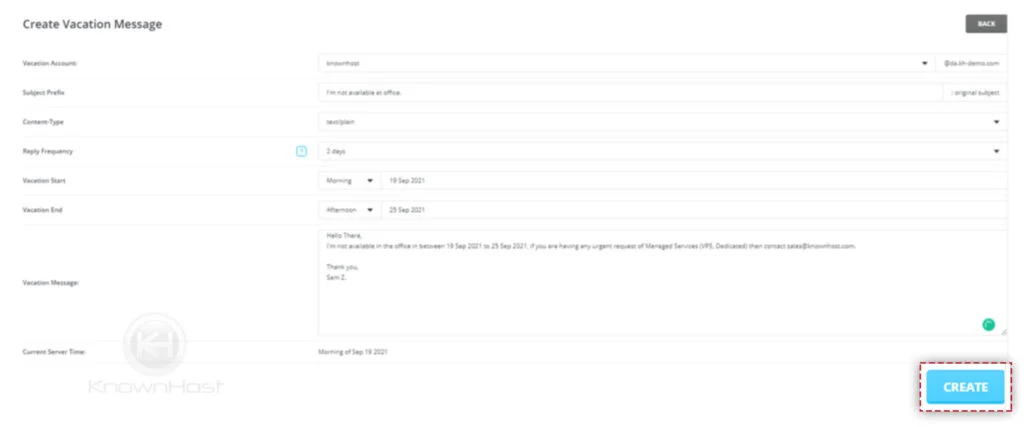
5. Finally, to deploy Vacation Message → Click on CREATE.
Conclusion
Vacation Messages feature in your DirectAdmin control panel is a free, virtual, automated assistant that will respond to every email you receive between vacation period (configured dates).